
Download Sponsored Ad Blocker – Free, Secure Ad‑Blocking Tool for Safer Browsing
Overview
Sponsored Ad Blocker is a lightweight, free application designed to strip sponsored advertisements from the websites you visit. By operating from a small task‑bar icon, the tool promises a cleaner, less intrusive browsing experience without the need for complex settings or premium subscriptions. In theory, the program works by maintaining a curated list of domains known to serve sponsored content and automatically blocking requests that match those entries.
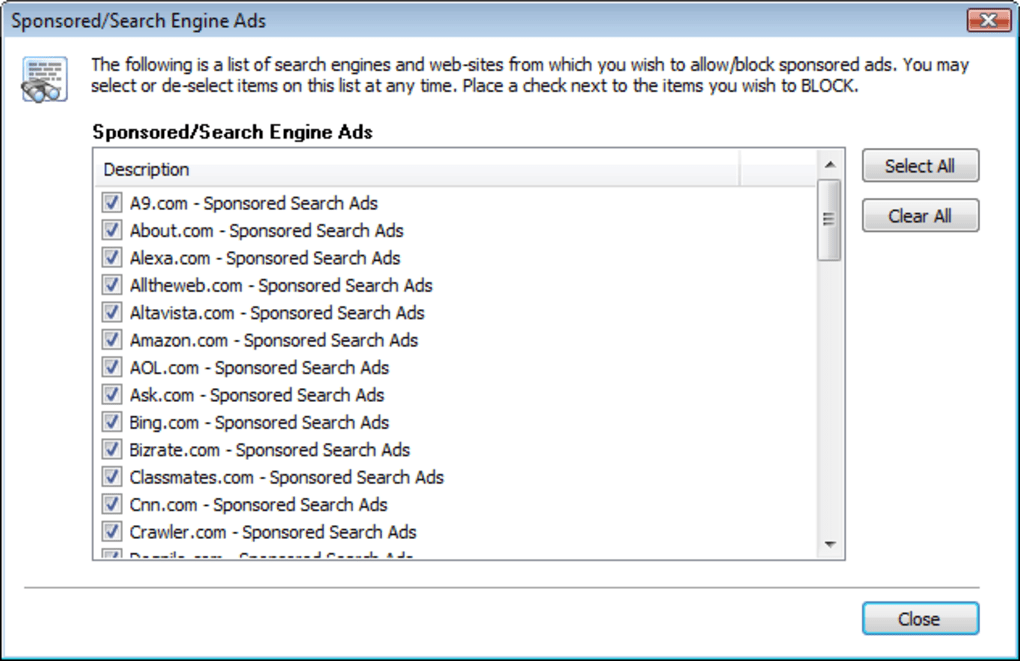
While the concept is straightforward, the real‑world performance shows a mixed picture. During extensive testing, Sponsored Ad Blocker proved functional on Firefox but failed to activate on other major browsers such as Chrome, Edge, or Safari. Moreover, the built‑in whitelist is static; users cannot add custom sites, which means any frequently visited domains not already covered remain exposed to sponsored ads.
The blocker also exhibits occasional over‑reach, mistakenly hiding non‑advertising page elements like navigation menus or embedded videos. Despite being free and easy to toggle on or off, the lack of customization and limited browser support make it a modest solution for users who need only basic ad suppression on a handful of supported sites. For power users or those who demand granular control, more robust alternatives like uBlock Origin or AdGuard may provide a richer feature set.
Nonetheless, Sponsored Ad Blocker can still serve a niche audience looking for a “set‑and‑forget” ad‑free experience on Firefox, provided they accept its constraints.
Key Features and Limitations
- Free, no‑cost download with no hidden fees.
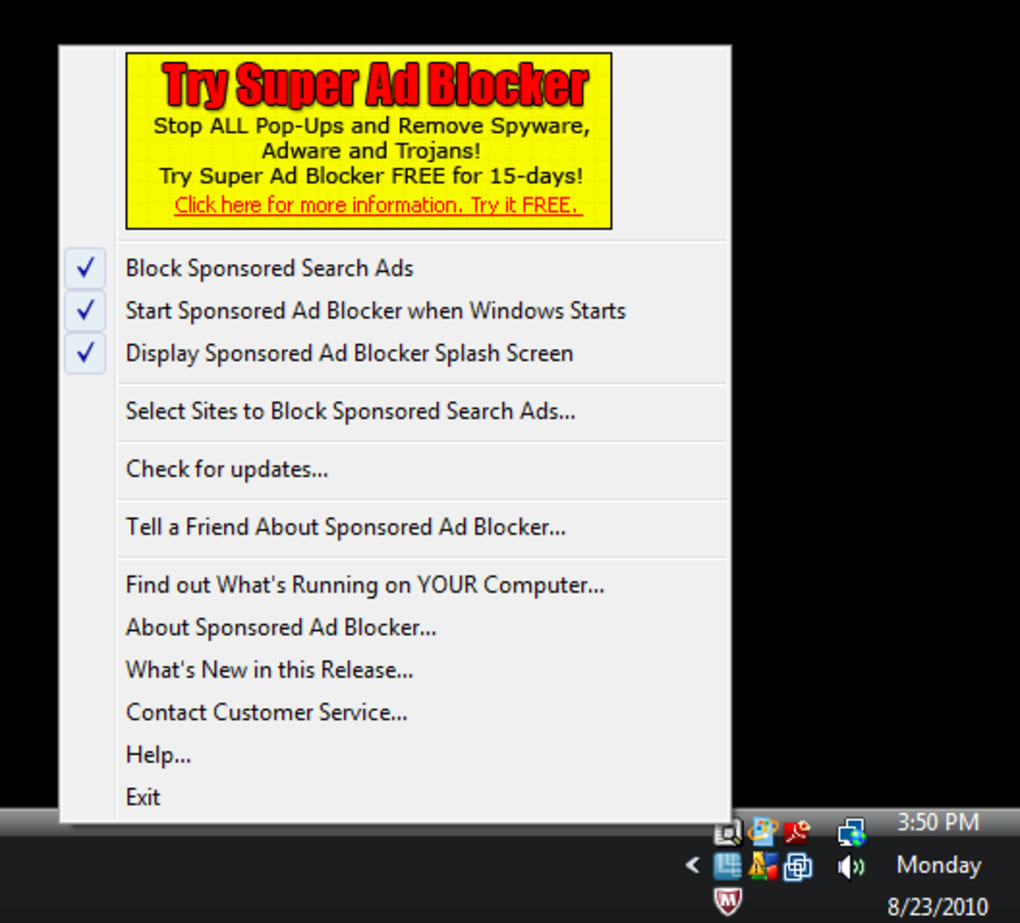
- Task‑bar icon for quick enable/disable control.
- Pre‑defined list of popular sponsored‑ad domains.
- One‑click toggling for entire browsing session.
- Works exclusively with Mozilla Firefox (as of current version).
While the feature list appears concise, each point carries important implications for everyday use. The free price tag removes financial barriers, but it also means the development team does not prioritize frequent updates or extensive support. The task‑bar icon is a convenient UI element, allowing users to pause blocking when needed—for example, on sites that require ad visibility for access. However, because the block list is static, you cannot manually add niche or newly emerging sponsored domains, limiting the tool’s effectiveness on less‑common sites.
The exclusive compatibility with Firefox is perhaps the most significant drawback. In a browser ecosystem dominated by Chrome, Edge, and Safari, restricting functionality to a single platform reduces the overall reach of the application. Users who switch browsers throughout the day will find the protection inconsistent, potentially exposing them to unwanted sponsored content on unsupported browsers.
Additionally, the blocker’s simplistic approach sometimes misidentifies legitimate page components as ads, resulting in broken layouts or missing images. This over‑blocking is especially noticeable on news portals that embed sponsored widgets within article bodies. In short, Sponsored Ad Blocker offers a “basic‑level” ad‑blocking experience that works well for a small, defined set of sites on Firefox, but it lacks the flexibility, breadth, and precision demanded by most power users.
Installation, Compatibility, Pros & Cons, and Frequently Asked Questions
Installation & Usage Instructions
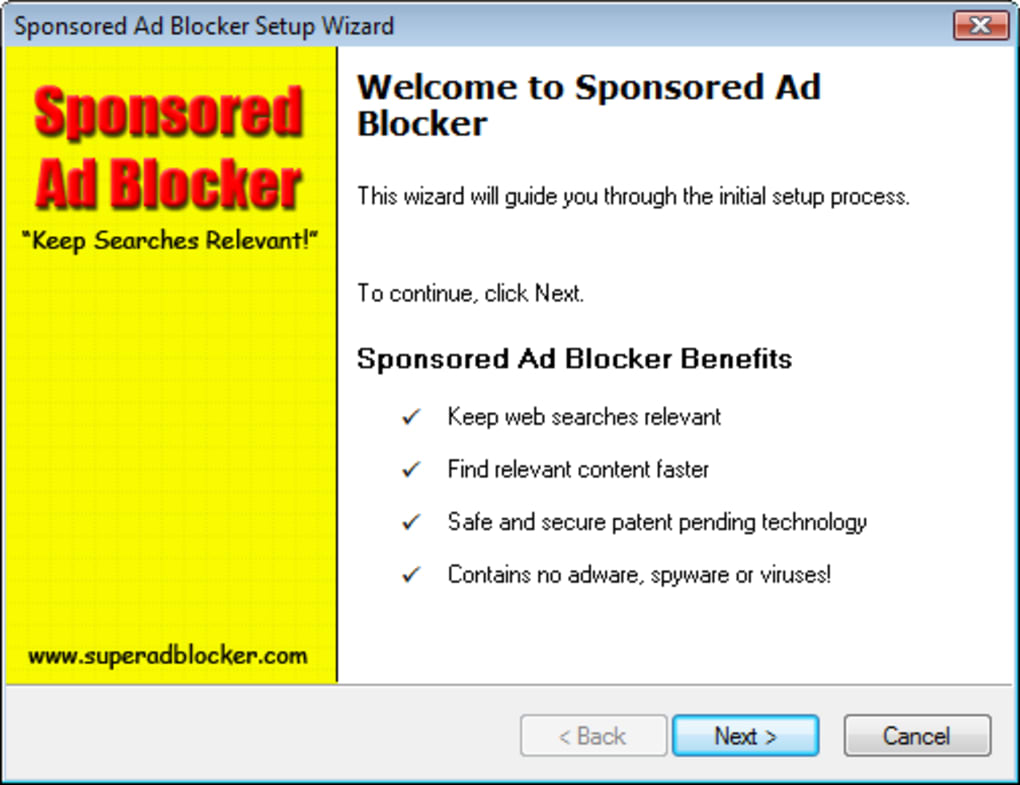
Getting Sponsored Ad Blocker up and running is straightforward. Follow these steps to ensure a smooth setup on your Windows or macOS computer:
- Visit the official download page and click the Download for Windows or Download for macOS button, depending on your operating system.
- Once the installer file (.exe for Windows, .dmg for macOS) finishes downloading, double‑click it to launch the wizard.
- Accept the End‑User License Agreement, then choose the default installation folder unless you have a specific location in mind.
- After installation, a small icon will appear in the system tray (Windows) or menu bar (macOS). Click the icon to open the control panel.
- In the control panel, toggle the “Enable Blocking” switch to activate the ad‑blocking engine. The program will immediately start filtering sponsored requests on Firefox.
- To disable blocking temporarily, simply click the icon again and switch the toggle off. The change takes effect instantly without needing to restart the browser.
The application does not require additional configuration files or manual rule editing, making it suitable for users who prefer a plug‑and‑play solution. However, remember that any changes to the block list must be performed through future software updates, as custom site addition is not supported.
Compatibility
Sponsored Ad Blocker currently supports the following operating systems:
- Windows 10 and later (64‑bit)
- macOS Catalina (10.15) and later
- Linux distributions (experimental, command‑line only)
Browser compatibility is limited to Mozilla Firefox version 78 and newer. Attempts to run the program alongside Chrome, Edge, Safari, or Chromium‑based browsers will result in no blocking activity, although the task‑bar icon will still appear.
Pros and Cons
- Pros
- Completely free with no subscription model.
- Simple one‑click activation from the task bar.
- Low system resource usage; does not noticeably slow down browsing.
- Instant blocking on supported Firefox sites without extra configuration.
- Cons
- Works only with Firefox; no support for Chrome, Edge, or Safari.
- Static block list – cannot add or remove custom domains.
- Occasional over‑blocking of legitimate page elements.
- Lacks advanced features such as filter customization, whitelist management, or anti‑tracking modules.
- Update frequency is low, potentially lagging behind new ad‑tech techniques.
Frequently Asked Questions
Is Sponsored Ad Blocker safe to use?
Yes, the software is free of malware and does not collect personal browsing data. However, because it only works with Firefox, you may need a complementary blocker for other browsers.
Can I add my own websites to the block list?
No. The current version uses a fixed list of sponsored domains. Adding custom sites is not possible without waiting for a future update from the developer.
Does the tool affect page load speed?
Because the blocker intercepts network requests early, it can actually speed up page loading on sites where many sponsored ads would otherwise be fetched. The impact on system resources is minimal.
Will the program block all ads, including non‑sponsored ones?
Sponsored Ad Blocker focuses solely on sponsored‑ad domains. Regular display ads from other networks are usually not blocked unless they share the same host as a listed sponsor.
How often is the block list updated?
Updates are released roughly every two to three months. Users receive a notification when a new version is available, but the schedule can vary based on the developer’s resources.
Conclusion – Should You Download Sponsored Ad Blocker?
Sponsored Ad Blocker offers a no‑cost, straightforward way to eliminate sponsored ads on Firefox, making it an attractive option for users who prefer a “set‑and‑forget” solution without diving into complex filter rules. Its strengths lie in its tiny footprint, easy toggle from the task bar, and immediate reduction of ad‑related network traffic. However, the tool’s rigidity—limited to a static domain list, lack of custom site support, and exclusive Firefox compatibility—means it may fall short for anyone who expects a comprehensive ad‑blocking suite.
If your browsing routine is largely confined to Firefox and you are satisfied with the pre‑selected list of sponsored domains, the blocker can provide a modest improvement in page cleanliness and loading speed. On the other hand, power users, multi‑browser enthusiasts, or those who need precise control over what gets blocked should consider alternatives such as uBlock Origin, AdGuard, or a premium solution that offers frequent updates and granular whitelisting.
Ultimately, the decision hinges on your tolerance for limitations versus the appeal of a free, lightweight app. To experience the benefits firsthand, download Sponsored Ad Blocker now and see whether its simplicity matches your browsing needs. Remember to keep the software updated to benefit from the latest sponsor list, and pair it with a broader ad‑blocking strategy if you venture beyond Firefox.







